
Chrome extension
Write the eligibility note into the eClinicalWorks visit
Lumexity for eCW places the eligibility note in General Notes on the appointment. Your team stays in eClinicalWorks. eCW still saves the visit, with its own checks and audit.
What the eCW extension does
After eligibility is checked in Lumexity, the note is ready for the encounter. The extension finds that note and appends it to General Notes. It does not replace what is already there.
Every note starts with a Lumexity marker and the appointment date. If that marker is already in the field, the visit is skipped. Visits that have not been checked are skipped too.
Coverage checks stay in the Office Eligibility Dashboard. The extension only carries the finished note into the chart.
Two ways to add the note
Single visit
One visit
Open the appointment. A Lumexity button appears next to General Notes. When the visit has finished loading, click it. The note is added. You click OK in eClinicalWorks to save.
Office Visits
Today's schedule
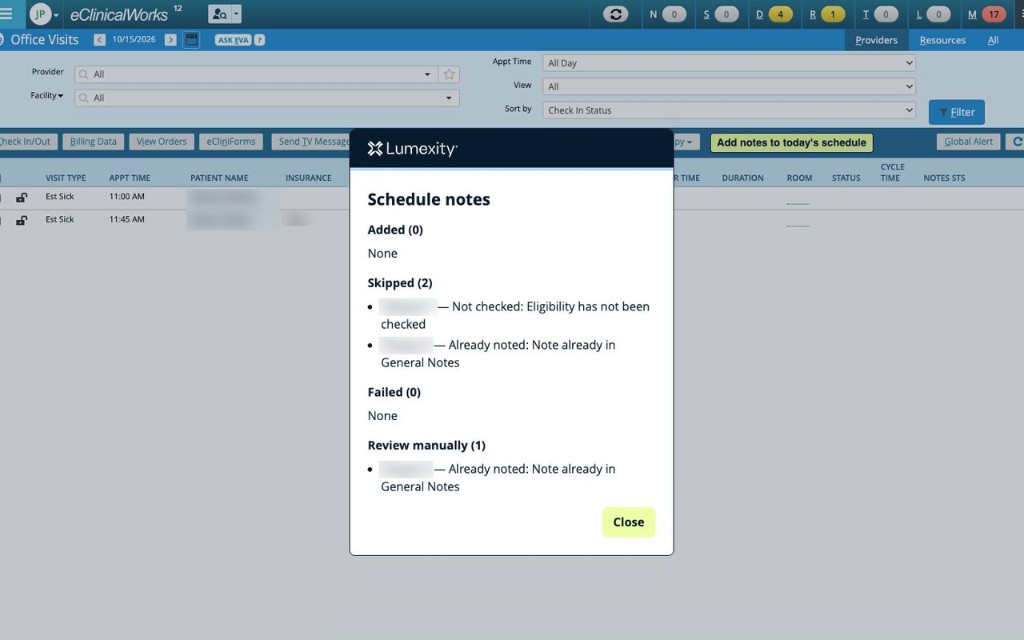
On Office Visits, start the schedule run. Lumexity opens each visit, writes the note, and saves through eCW's appointment window. Stay on that tab until the summary appears.
If you leave the tab during a schedule run, the queue pauses. Come back and it continues. Leaving Office Visits or closing the tab stops the run.
What you see on the schedule
Office Visits stays visible. While a schedule run is in progress, a Lumexity panel covers the appointment window so the screen stays readable.
- Visits with inactive coverage show an Inactive label on the row.
- Visits that are not checked yet are left unmarked and are not written.
- The summary lists what was added, skipped, or needs a manual look.
Install the extension
Add to Chrome- Open Lumexity for eCW in the Chrome Web Store.
- Add it to Chrome.
- Sign in from the extension popup with your Lumexity account.
- Open Office Visits in eClinicalWorks. The tools appear on that screen.
It runs on eClinicalWorks cloud at eclinicalweb.com and ecwcloud.com. Each computer signs in on its own. Chrome's own steps for adding an extension are on Google's install guide.
Questions about what the extension stores are covered in the privacy policy. To see it on your schedule, book a time.
Questions
What does the Lumexity eCW extension do?
It writes the Lumexity eligibility note into General Notes on the eClinicalWorks appointment. The note is appended. Existing notes stay in place. A visit that already has the Lumexity marker is skipped.
Does the extension check eligibility?
No. Eligibility is checked in Lumexity first. The extension places the note that already exists for that encounter. Visits that have not been checked are skipped.
Does it save the appointment?
On a single visit, you review the note and click OK in eClinicalWorks. On today's schedule, the extension opens each visit, writes the note, and saves through eCW's own appointment window.
How do clinics install it?
Add Lumexity for eCW from the Chrome Web Store, then sign in from the extension popup with your Lumexity account. Each computer signs in on its own.
Which eClinicalWorks sites does it run on?
It runs on eClinicalWorks cloud pages at eclinicalweb.com and ecwcloud.com, on the Office Visits schedule and the appointment window. It does not run on other websites.